How To Use CloudSpan for PBX Licensing and Hosting
CloudSpan is our brand-agnostic PBX licensing platform, and it’s live. If you’re supporting mixed PBX environments, it consolidates license procurement, renewals, and customer-level tracking into one dashboard — organized by end customer and location.
We put together a short walkthrough so you can see exactly how it works. Watch it below.
What the Walkthrough Covers
Signing in to CloudSpan through your VoIP Supply account
Navigating the dashboard — accounts, locations, PBX licenses, and hosting
Creating a customer account and adding locations
Selecting a PBX platform, license type, and license size
Reviewing CloudSpan hosting and completing checkout with your PO
The whole thing runs about three minutes. And because we also ship the hardware, the phones, the licensing, and the hosting can all go on a single PO.
Most resellers and MSPs don’t support a single PBX brand. They support whatever their customers already run — which means a separate portal, a separate login, and a separate billing cycle for each one. Renewal dates live in five places. Customer records live in five more.
Consolidating that into one system isn’t just tidier. It means fewer missed renewals, faster quoting, and a single record of what each customer is running and where. When a customer calls about their licensing, you have one place to look.
Ready to get Started?
CloudSpan is available now to VoIP Supply partners. To learn more or request access, visit CloudSpan. For the full background on the platform, read the CloudSpan launch announcement.
Have questions about how CloudSpan fits your deployments, or which PBX platforms make sense for a specific customer? That’s what our team is here for.
If you have questions or comments, leave them below, chat with one of our VoIP experts at www.voipsupply.com, or call us at 1-800-398-8647.
Most UC deals don’t fall apart on the product. They fall apart in the gaps between the platform, the endpoints, and everything it takes to get both delivered, configured, and supported. Our Fanvil and Yeastar webinar is about closing that gap.
Yeastar’s Tommy Lee, Fanvil’s Jason New, and VoIP Supply’s Brian Hyrek sat down for a full hour on how the three pieces fit — and where the reseller opportunity actually sits when they’re sold together instead of separately.
What’s Covered in the Fanvil and Yeastar Webinar
Why complete solutions win more deals than product-by-product selling
How the Yeastar platform and Fanvil endpoints work together in real deployments
Where distribution and services remove friction from a UC rollout
Real deployment scenarios, start to finish
Where reseller margin and opportunity actually sits
Q&A with all three teams
Shop the Brands from the Webinar
Both lines are in stock and supported by our team. Browse the full Yeastar catalog for platform and gateway options, or the full Fanvil lineup for endpoints — desk phones, DECT, video, and door intercoms.
The webinar covered how Yeastar’s communications platform, Fanvil’s endpoint hardware, and VoIP Supply’s distribution and services combine into a single deployable UC solution. It was built for MSPs, resellers, and channel partners who quote and deploy business phone systems.
Do Fanvil phones work with Yeastar PBX systems?
Yes. Fanvil endpoints are widely deployed alongside Yeastar platforms, and both brands are stocked and supported by VoIP Supply. For provisioning specifics and current compatibility on a given model, talk to a VoIP expert at 1-800-398-8647.
How long is the webinar?
38:52 – The full Fanvil and Yeastar webinar is available through the above Youtube video.
Who is VoIP Supply?
VoIP Supply has been a leading VoIP distributor and full-service solution provider since 2002, based in Amherst, NY. Beyond distribution, our teams handle provisioning, fulfillment, and deployment support for resellers, MSPs, and businesses across North America.
If you have questions or comments, leave them below, chat with one of our VoIP experts at www.voipsupply.com, or call us at 1-800-398-8647.
Today we’re announcing the launch of CloudSpan. It’s a brand-agnostic platform where VoIP Supply partners can purchase, manage, and host PBX licensing across multiple vendors — organized by end customer and location, all in one dashboard.
If you’re a reseller or MSP supporting mixed PBX environments, you know the sprawl: a different portal, login, and billing cycle for every brand you sell. CloudSpan consolidates license procurement, renewals, and customer-level tracking into one place. And because we also ship the hardware, the phones, the licensing, and the hosting can all go on a single PO.
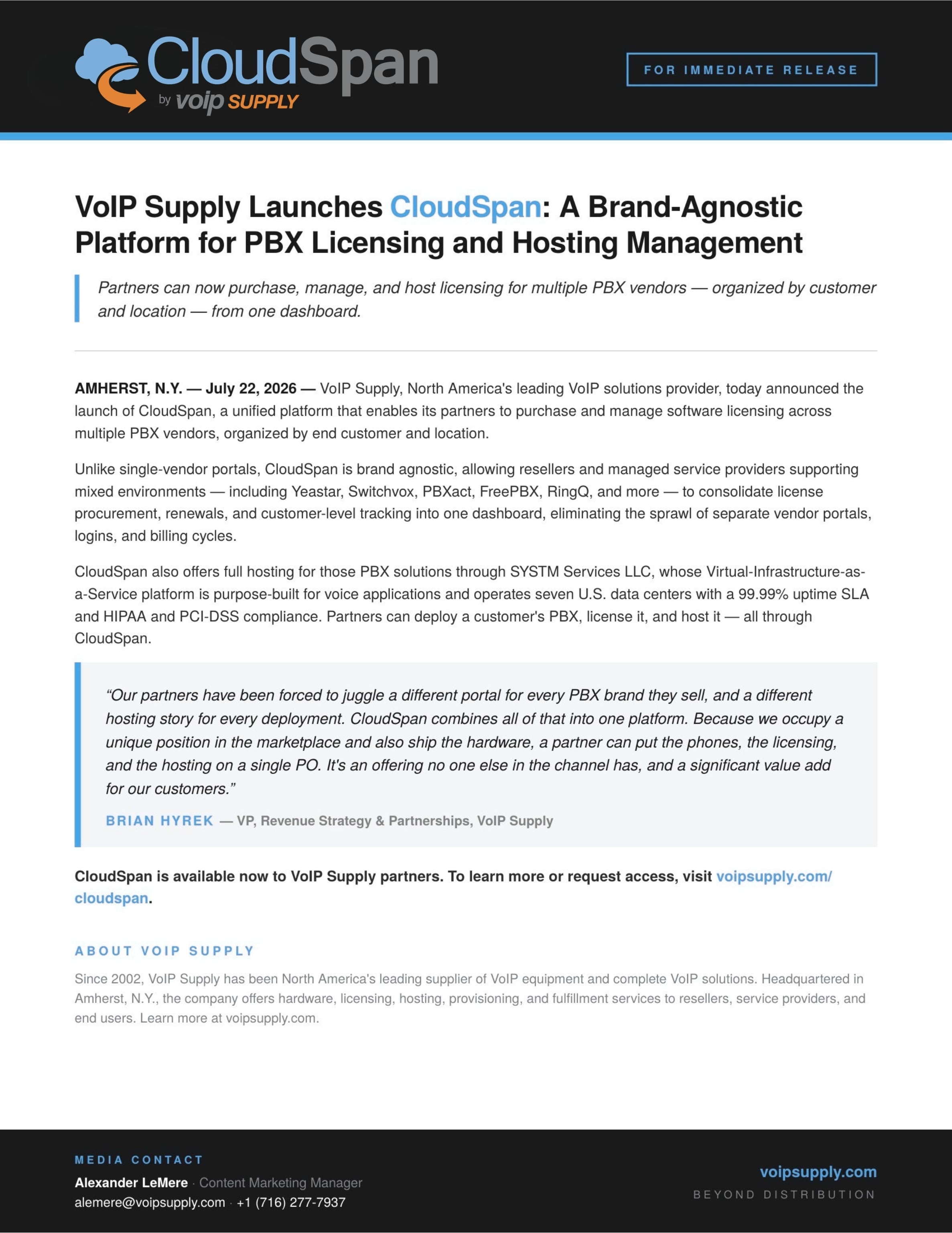
VoIP Supply Launches CloudSpan: A Brand-Agnostic Platform for PBX Licensing and Hosting Management
Partners can now purchase, manage, and host licensing for multiple PBX vendors — organized by customer and location — from one dashboard.
AMHERST, N.Y. — July 22, 2026 — VoIP Supply, North America’s leading VoIP solutions provider, today announced the launch of CloudSpan, a unified platform that enables its partners to purchase and manage software licensing across multiple PBX vendors, organized by end customer and location.
Unlike single-vendor portals, CloudSpan is brand agnostic, allowing resellers and managed service providers supporting mixed environments — including Yeastar, Switchvox, PBXact, FreePBX, RingQ, and more — to consolidate license procurement, renewals, and customer-level tracking into one dashboard, eliminating the sprawl of separate vendor portals, logins, and billing cycles.
CloudSpan also offers full hosting for those PBX solutions through SYSTM Services LLC, whose Virtual-Infrastructure-as-a-Service platform is purpose-built for voice applications and operates seven U.S. data centers with a 99.99% uptime SLA and HIPAA and PCI-DSS compliance. Partners can deploy a customer’s PBX, license it, and host it — all through CloudSpan.
“Our partners have been forced to juggle a different portal for every PBX brand they sell, and a different hosting story for every deployment,” said Brian Hyrek, VP of Revenue Strategy & Partnerships at VoIP Supply. “CloudSpan combines all of that into one platform. Because we occupy a unique position in the marketplace and also ship the hardware, a partner can put the phones, the licensing, and the hosting on a single PO. It’s an offering no one else in the channel has, and a significant value add for our customers.”
CloudSpan is available now to VoIP Supply partners. To learn more or request access, visit voipsupply.com/cloudspan.
About VoIP Supply
Since 2002, VoIP Supply has been North America’s leading supplier of VoIP equipment and complete VoIP solutions. Headquartered in Amherst, N.Y., the company offers hardware, licensing, hosting, provisioning, and fulfillment services to resellers, service providers, and end users. Learn more at voipsupply.com.
If you have questions or comments, leave them below, chat with one of our VoIP experts at www.voipsupply.com, or call us at 1-800-398-8647.
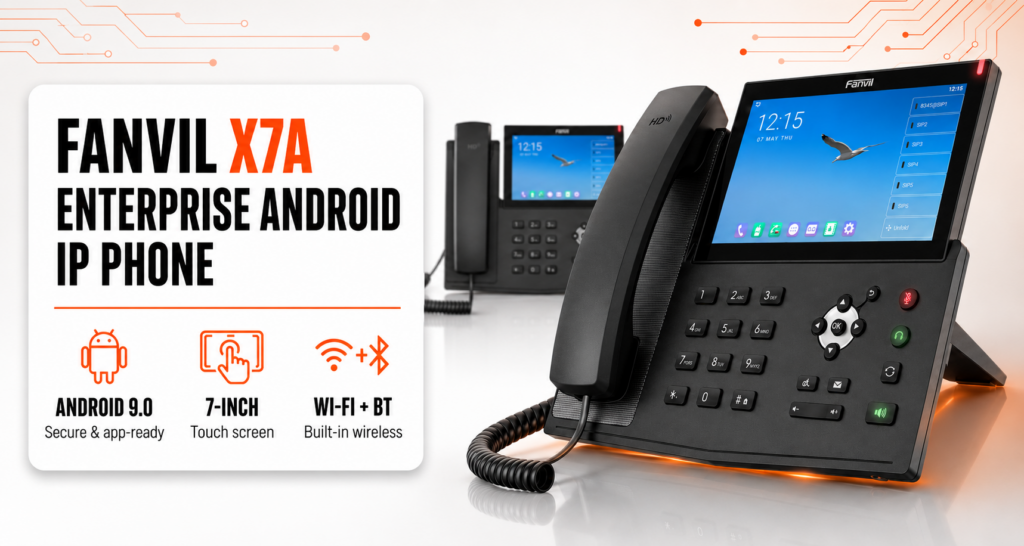
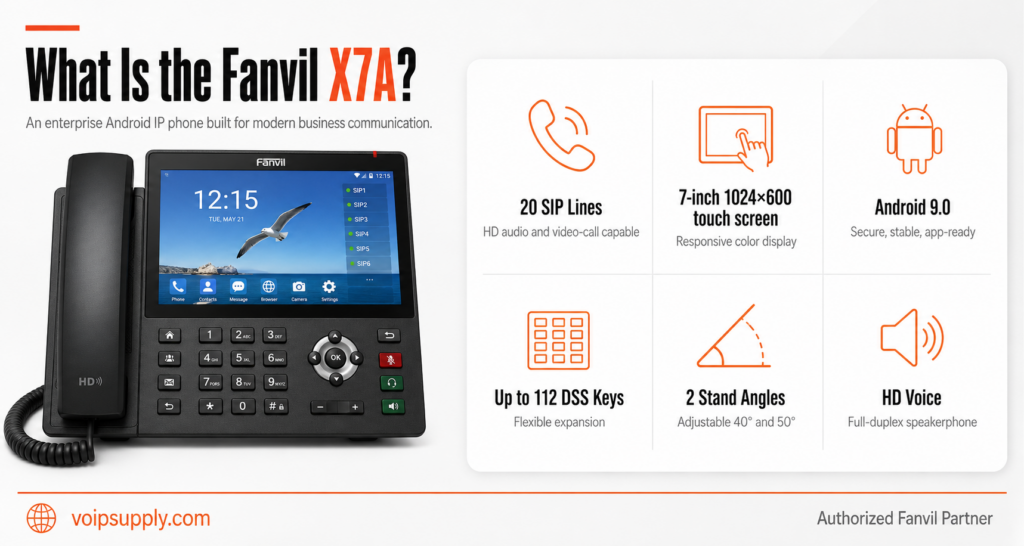
The Fanvil X7A is an enterprise Android IP phone built around a 7-inch color touchscreen (1024×600). It supports 20 SIP lines, HD voice, video call reception, and up to 112 on-screen DSS keys — no expansion modules required. Here’s what it offers and where it fits.
Up to 112 virtual DSS keys live directly on the display. Deployments that traditionally require physical expansion modules — reception desks, dispatchers, anyone monitoring multiple extensions — get full line visibility on a single device with one desk footprint.
Built-In Wireless: Wi-Fi and Bluetooth
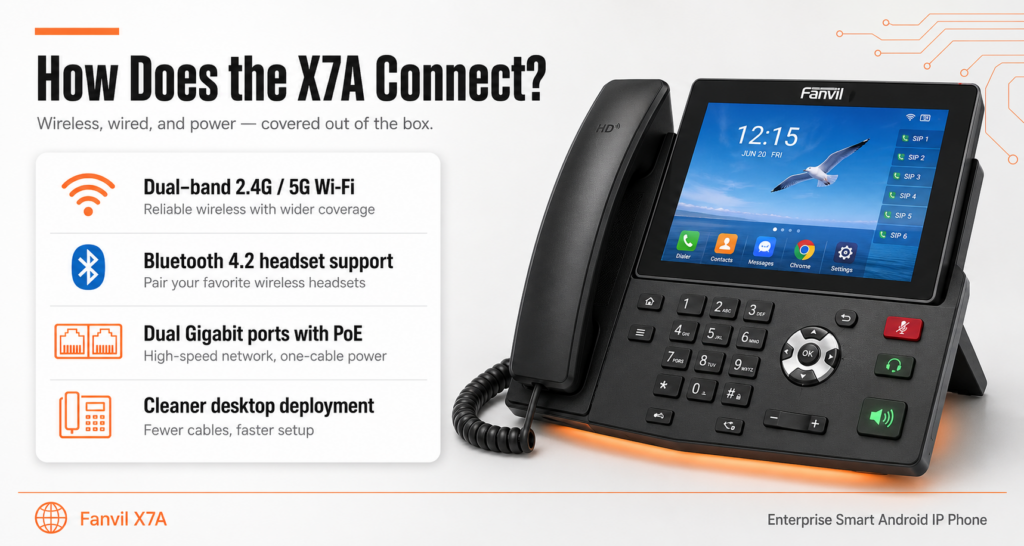
Dual-band Wi-Fi (2.4GHz and 5GHz) and Bluetooth 4.2 are built in. Wi-Fi lets the phone deploy where there’s no Ethernet drop — retrofits and flexible offices — while Bluetooth handles cordless headset pairing. For wired setups, dual Gigabit ports with integrated PoE include a bridged PC port, so one network drop serves the phone and the workstation.
Audio and Video
Harman-tuned HD audio runs across handset, hands-free, and headset modes, backed by full-duplex echo cancellation, noise reduction, and wideband codecs including G.722 and Opus. The X7A receives video calls up to 720p (H.264), and an optional USB camera adds two-way video.
Platform Compatibility and Deployment
The X7A is compatible with major platforms including Asterisk, BroadSoft, 3CX, Metaswitch, and Avaya. Auto-provisioning (FTP/TFTP/HTTP/HTTPS/DHCP Option 66/SIP PnP/TR-069) supports large rollouts, and security features include SIP over TLS, SRTP, 802.1x, OpenVPN support, and AES-encrypted config files.
Who It’s For
Front desks that need high line counts without add-on hardware, executive desks that expect a touchscreen interface, and offices where built-in Wi-Fi removes the cabling question. For video-first desks, compare the Fanvil V67 Android Video IP Phone. The Fanvil X7A is available now at VoIP Supply.
If you have questions or comments, leave them below, chat with one of our VoIP experts at www.voipsupply.com, or call us at 1-800-398-8647.
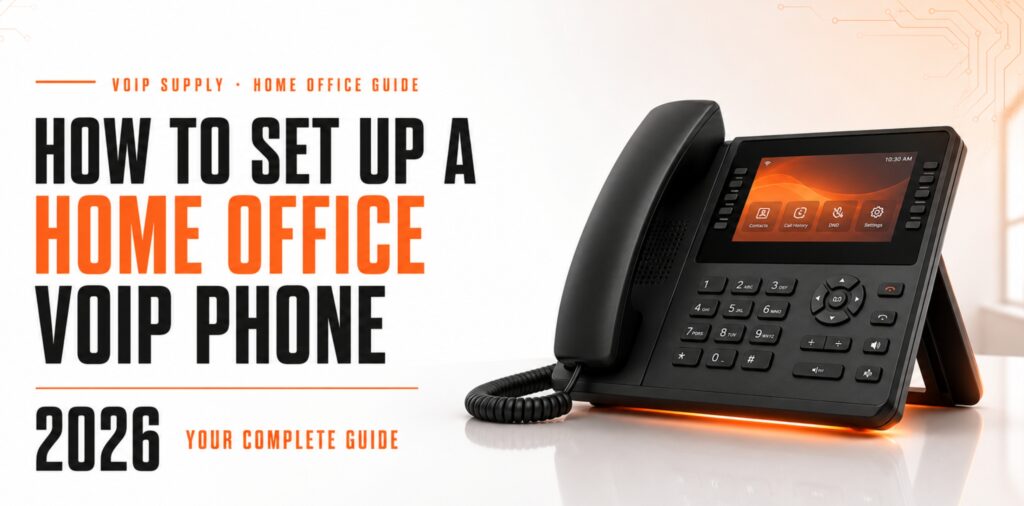
Setting up a home office VoIP phone in 2026 — a step-by-step guide from the VoIP Supply team.
Setting up a VoIP phone in your home office doesn’t have to be complicated. Whether you’re a remote worker, freelancer, or small business owner, a reliable voice over IP connection keeps you professional and productive from anywhere.
We make this even easier with plug-and-play provisioning that configures your phone before it arrives. In this guide, you’ll learn exactly what equipment you need and how to get your home office VoIP phone up and running in just a few steps.
Quick Guide: How to Set Up a Home Office VoIP Phone in 7 Easy Steps
Check Your Internet Connection — Verify your bandwidth and network stability for clear VoIP calls.
Choose a VoIP Service Provider — Select a hosted or SIP-based provider that fits your calling needs.
Select the Right VoIP Phone — Pick a desktop or cordless IP phone based on your home office setup.
Gather Your Network Equipment — Confirm you have an Ethernet cable and a PoE switch or AC adapter.
Connect Your VoIP Phone to the Network — Plug your phone into your router or network switch.
Configure Your Phone Settings — Enter your SIP credentials or use our provisioning service for auto-setup.
Test Your Connection and Call Quality — Make a test call to verify audio clarity and connectivity.
How to Set Up Your Home Office VoIP Phone Step by Step
1. Check Your Internet Connection
Before anything else, you need to make sure your internet connection can handle VoIP traffic. A single VoIP call typically requires about 100 kbps of bandwidth in each direction, so most home internet plans will work just fine.
What matters more than raw speed is connection stability. Run a speed test to check for packet loss and jitter, which can cause choppy audio or dropped calls. If you’re using Wi-Fi, consider switching to a wired Ethernet connection for your VoIP phone to reduce interference.
Most internet service providers today offer speeds well above what VoIP requires. If you plan to make multiple simultaneous calls or use video conferencing alongside voice, factor in that additional bandwidth as well.
2. Choose a VoIP Service Provider
Your VoIP service provider handles the actual phone service—routing your calls over the internet and connecting you to traditional phone networks. You’ll need to sign up with a provider before your VoIP phone can make or receive calls.
Hosted VoIP services include all the infrastructure and give you a web portal to manage your account. SIP trunking works differently, connecting to your own IP PBX system for more control over call routing and features.
Consider what features you actually need: voicemail, call forwarding, auto-attendant, or multi-line support. We offer free consultations through the CloudSpan Marketplace to help you compare providers and get up to three quotes from top VoIP service providers.
3. Select the Right VoIP Phone
The right VoIP phone depends on how you work. Desktop IP phones sit on your desk and offer features like speakerphone, programmable buttons, and large displays. Cordless DECT phones let you move around your home office while staying on a call.
Entry-level VoIP phones work well if you mainly need basic calling features. Mid-range models add color screens, Bluetooth headset support, and better audio quality. High-end phones include video calling and integration with unified communications platforms.
We carry VoIP phones from all major manufacturers, so you can choose based on features and budget rather than being locked into a single brand. Our certified VoIP experts can also recommend specific models based on your service provider and home office requirements.
4. Gather Your Network Equipment
You’ll need a few pieces of equipment to connect your VoIP phone to your network. At minimum, you need an Ethernet cable to run from your phone to your router or network switch.
Many VoIP phones support Power over Ethernet (PoE), which means they receive both data and power through a single Ethernet cable. If your router doesn’t support PoE, you can use a PoE injector or power the phone with an AC adapter—just note that on many business IP phones the adapter is sold separately rather than included in the box.
If your router is far from your desk, a small network switch gives you more Ethernet ports where you need them. We stock PoE-enabled switches that can power multiple VoIP devices without extra adapters.
5. Connect Your VoIP Phone to the Network
With your equipment ready, connecting the phone is straightforward. Plug one end of the Ethernet cable into the LAN or network port on your VoIP phone. Connect the other end to an available port on your router or network switch.
If you’re using PoE, the phone should power on automatically once connected. Otherwise, plug in the AC adapter and turn on the phone. You should see the phone boot up and attempt to obtain an IP address from your network.
Most modern VoIP phones automatically configure network settings through DHCP. If your phone shows an IP address on its display, you’re ready to move on to configuration.
6. Configure Your Phone Settings
This is where many people expect things to get complicated, but it doesn’t have to be. Your VoIP phone needs your SIP account credentials—typically a username, password, and server address—to connect to your service provider.
You can enter these settings manually through your phone’s menu or web interface. Each phone manufacturer has slightly different menu navigation, but the settings you need are usually under “Account” or “SIP Configuration.”
Or skip the step entirely. Our VoIP Provisioning service configures your phone before it ships, so it arrives ready to plug in and use—and we can even pre-label each phone with extension numbers and user names for faster deployment.
7. Test Your Connection and Call Quality
Before relying on your new VoIP phone for important calls, run a few tests. Call a friend, family member, or your own mobile phone to check that calls connect properly in both directions.
Listen for audio quality issues during your test call. Echoes, delays, or choppy audio can indicate network problems, incorrect codec settings, or insufficient bandwidth. If you notice issues, try connecting via Ethernet instead of Wi-Fi, or check for other devices consuming bandwidth on your network.
Once everything sounds clear, you’re ready to start using your home office VoIP phone. Save important contacts, set up voicemail, and configure any call forwarding rules through your service provider’s portal.
What Internet Speed Do You Need for VoIP Calling?
A single VoIP call uses roughly 100 kbps of upload and download bandwidth. This means even basic internet plans with 10-25 Mbps speeds have plenty of capacity for voice calling. The real concern isn’t speed—it’s connection quality.
Jitter and packet loss affect call quality more than raw bandwidth. Jitter happens when data packets arrive at inconsistent intervals, causing audio to sound choppy or robotic. Packet loss means some audio data never arrives at all, creating gaps in conversation.
For the clearest calls, use a wired Ethernet connection rather than Wi-Fi. You can also enable Quality of Service (QoS) settings on your router to prioritize VoIP traffic over other internet activity like streaming or file downloads.
Can You Use a Regular Phone with VoIP Service?
Yes, you can use your existing analog phone with VoIP service by adding a device called an Analog Telephone Adapter (ATA). An ATA converts the analog signal from a traditional phone into digital VoIP data that travels over your internet connection.
ATAs are useful if you already have a phone you like or if you want to connect a fax machine to VoIP service. We carry VoIP gateways and ATAs that support this type of hybrid setup.
Keep in mind that dedicated IP phones typically offer better audio quality and more features than analog phones connected through an adapter. If you’re setting up a new home office, starting with a VoIP phone usually makes more sense than adapting older equipment.
How VoIP Supply Helps You Set Up Your Home Office Phone
We take the guesswork out of setting up your home office phone system. With over 20 years of experience and more than 200,000 customers served, our team of certified experts can help you choose the right equipment from one of the industry’s largest vendor-agnostic catalogs.
What really sets us apart is our plug-and-play provisioning service. Instead of configuring your phone yourself, our technicians set it up before it ships. Your phone arrives pre-configured with your SIP credentials and ready to connect—just plug in the Ethernet cable and start making calls.
You also get free pre-sale consultations with certified VoIP experts who can answer questions about compatibility, features, and service providers. And if you need help after purchase, our support team is here to troubleshoot any issues. Contact us today for a free consultation on your home office VoIP setup.
FAQs About Home Office VoIP Phone Setup
Do I need special equipment to use a VoIP phone at home? You need a VoIP phone or ATA adapter, a router with an available Ethernet port, and high-speed internet. We can put together a complete equipment package with everything you need for your home office setup, from phones to network switches.
How long does it take to set up a VoIP phone? Physical setup takes about 10-15 minutes once you have your equipment. Configuration can take longer if you’re entering settings manually. Our provisioning service eliminates configuration time entirely—your phone arrives ready to use out of the box.
Can I keep my existing phone number with VoIP? Yes, most VoIP service providers support number porting, which lets you transfer your existing phone number to your new VoIP service. The porting process typically takes 1-3 weeks depending on your current carrier.
What happens to my VoIP phone if my internet goes out? VoIP phones require an internet connection to function. If your internet goes down, you won’t be able to make or receive calls until service is restored. Many VoIP services offer call forwarding to a mobile number as a backup option during outages.
Is VoIP call quality as good as a traditional phone? VoIP call quality often exceeds traditional landlines when you have a stable internet connection. HD voice codecs on modern VoIP phones deliver clearer audio than standard phone lines. Our experts can recommend phones with the audio features you need.
If you have questions or comments, leave them below, chat with one of our VoIP experts at www.voipsupply.com, or call us at 1-800-398-8647.
On the latest episode of SiP Chats, VoIP Supply’s Brian Hyrek sat down with Michelle Ritz, Product Marketing Manager at Jabra. They walked through the new Jabra Evolve3 headset line — two flagship models built for the way people actually work now.
Meet the Jabra Evolve3 85 and Evolve3 75
The Evolve3 line launched with two flagship models, direct successors to the Evolve2 85 and Evolve2 75. The hardware and core experience are shared — the real difference is how you wear it:
➤ Jabra Evolve3 85 — an over-the-ear headset designed for full immersion and the deepest noise isolation.
➤ Jabra Evolve3 75— an on-the-ear fit that’s lighter and more flexible, with more awareness of what’s around you.
As Michelle puts it in the episode, the experience is the same across both — you just pick the wearing style that fits how you work.
Why Jabra Dropped the Boom Arm
The headline change is the missing mic boom. Instead of relying on an arm to capture your voice, the Evolve3 uses DNN — deep neural network — audio that locks onto the user’s voice and blocks the noise around it.
That intelligence didn’t come out of nowhere. Jabra is part of GN, the parent company behind medical-grade hearing aids. The same voice-trained technology now lives inside these enterprise headsets. It also solves a problem the boom arm created: in windy spots like a busy train station or a city street, the old boom would pick up the wind and muddy the call. Without it, that goes away.
Built for Focus in a Noisy World
Removing the boom didn’t mean giving up noise control. Active noise cancellation (ANC) is built into the line, and on the over-ear Evolve3 85 it fully covers the ear for total isolation — the kind of focus you want on a loud office floor or a back-to-back call day.
Michelle and Brian get into the full picture in the episode. They cover whoeach model is for, and why this is a real reinvention of the professional headset rather than a refresh. It’s a quick watch and worth it if you spend your day on calls.
When was the last time calling a business actually went well? You dial in, fight through a menu, wait in a queue, and finally reach someone who has to transfer you anyway. For two decades, that experience pushed people away from the phone and toward apps, websites, and chatbots. Xorcom AI voice agents are built to change that.
In our latest webinar, VoIP Supply’s Brian Hyrek sat down with Eran Gal of Xorcom to look at how these AI voice agents — built directly into the CompletePBX platform — are making voice worth picking up again.
Why Voice Is Coming Back
Eran’s case is simple: talking is the most natural way people communicate, but voice service has historically been a bad experience — clunky IVRs, long holds, and reaching the least-skilled agent first. AI changes the economics. A well-built voice agent answers instantly, around the clock, with the knowledge of your most experienced rep — and it lowers cost instead of raising it.
The Three Types of Xorcom AI Voice Agents
Xorcom gives you three agent types you can mix and match:
Receptionist agent — understands what the caller needs and routes them to the right person, queue, or agent. Because it lives inside the PBX, it already knows your extensions, departments, and who handles what.
Informative agent — answers questions from a knowledge base you control, from store hours to complex technical or policy questions.
Custom agent — connects to your CRM, ERP, or any system with an API. In the webinar, Eran walks through real examples, including secure caller authentication and a pizza chain taking full orders by phone.
How It Works
Because the agents are native to CompletePBX, every AI call behaves like any other call on the system — recordings, transcripts, summaries, and sentiment all land in the same place as your human calls. There’s no third-party account to manage, and billing is pay-per-use by the minute, so you can advertise 24/7 service and only pay for the calls you actually take. Existing Xorcom customers can switch it on with a license and a quick setup, and it can even connect to an existing PBX over a SIP trunk.
AI voice is early, but it’s moving fast — and Xorcom AI voice agents are one of the clearest examples of AI already paying off in real deployments. If you’re an MSP, reseller, or IT team thinking about where this fits, the full webinar is worth the watch.
The recent transition of NetXUSA to Vault has left many service providers, MSPs, VARs, and enterprise customers searching for a more stable, transparent, and customer-focused fulfillment partner. We’ve heard from countless teams who are frustrated by the growing pains of that acquisition — from order delays and lack of communication to reduced flexibility in provisioning.
If you’re feeling the impact, you’re not alone — and you have options.
At VoIP Supply, we’ve spent the last two decades building the most complete fulfillment and provisioning solution in the industry. Our Custom Fulfillment Portal was designed specifically for providers like you — giving you full control, visibility, and confidence at every step of your supply chain.
Our provisioning services are fully tailored to your workflows. Whether you need devices pre-configured, labeled, and shipped directly to your customers — or integrated with your own systems — we make it seamless. We even have API integration available!
End-to-End Fulfillment
From warehousing to white-label shipping, we handle it all. Our team acts as an extension of your operations so you can focus on scaling your business — not managing logistics.
Real-Time Portal Access
Our Custom Fulfillment Portal gives you live access to inventory, instant MAC and Serial information, and provisioning updates. It’s built to give you clarity, speed, and control — the way fulfillment should be.
Dedicated Support
With VoIP Supply, you’re never left waiting on a ticket. Our dedicated account managers and fulfillment specialists are here to help — because relationships still matter.
We’re proud to be the trusted fulfillment partner for hundreds of MSPs, VARs, and enterprise customers across North America. From small resellers to national service providers, our solutions scale with you — delivering consistency, accuracy, and peace of mind.
If you’ve been impacted by recent industry changes, now’s the perfect time to explore a partner who’s been doing this right for over 20 years.
Knowing about UC Solutions and how to sell them can lead to added success for any VoIP reseller. This webinar will show you how to capitalize on UC Solutions in Education, Hospitality, Finance, and Healthcare sectors!
While there are many choices when it comes to Unified Communications, this webinar will focus on two manufacturers who are leading the charge! So, tune in as we team up with Yeastar and Fanvil to deliver an insightful and enjoyable webinar that shows you how to use their combined strength to make selling UC Solutions easy!
Are you currently a reseller of Yeastar and Fanvil? Let us know in the comments below!
Did you know the first 9-1-1 call dates back to 1968 in Alabama? AT&T introduced 9-1-1 as an easy-to-dial and remember number for emergency services. What I don’t think they were counting on was that many people in 2025 do not dial the numbers. 20% of all 9-1-1 calls in 2024 were made in a way other than dialing. Some of these methods include E9-1-1(Enhanced 9-1-1) through VoIP technology.
According to a study from Susan Athey and Scott Stern of Stanford University, “We find that, as a result of E911 adoption, patient health measured at the time of ambulance arrival improves, suggesting that E911 enhances the timeliness of emergency response.”
Voice over IP (VoIP) technology is reshaping how institutions – from schools and hospitals to office buildings and city infrastructures – manage safety alerts, paging, and emergency notifications. Many of these agencies, businesses, schools, etc. are making installing VoIP security devices and emergency alerting a top priority. These devices enhance response time, provide easily-accessible one-press button alerting, more accurate location information, enhanced security, and more! Let’s take a look at what type of devices are available, how they work, and why you need them!
Let’s start with why you want VoIP for Emergency communication. VoIP emergency solutions allow organizations to communicate instantly across large spaces with clear audio and visual alerts. Unlike analog systems, VoIP devices are IP-based, meaning they can be remotely configured, monitored, and triggered across networks, even across buildings and campuses. This flexibility and scalability make them ideal for enhancing public safety.
VoIP Supply carries some of the top brands in the IP paging, emergency alerting, and notification category. Let’s take a look at some of these brands and popular devices that aid in emergency response and notifications.
Algo Solutions: A manufacturer of IP endpoints for IP paging, emergency alerting, and secure door or gate entry for UC, collaboration, and mass notification environments.
Education Bundle: This bundle includes the 8305 paging adapter for system management, 8188 IP ceiling speaker for classrooms, 1203 emergency call switch, 8420 IP dual-sided display speaker for hallways or common areas, and the 8186 IP horn speaker for outdoors or large areas.
Algo 1202 Call Button: A high visibility SIP-compliant call box for one-touch customer assistance and emergency notifications. It can be programmed through the web interface to send a notification via voice paging, telephone voice message, text messaging, email, or audible/visual alerting.
Advanced Network Devices: Advanced Network Devices (AND) provides multiple solutions such as paging, intercom, mass notifications, security, audio reinforcement, and more.
IP Speaker with HD Display: Features an 8″ high-efficiency speaker with an audio coverage of 600 ft2. It contains an RGB flashing LED bar to customize additional visual and audio messaging in any color.
Indoor IP Strobe: A PoE strobe with a blue lens that provides an additional mode of visual for emergency alerts and notifications.
Bogen Communications:A trusted leader in telephone paging systems, commercial audio, and advanced communications solutions for education and commercial markets.
Nyquist Digital Call Switch: Enables users to initiate normal, urgent, or emergency calls from classrooms or staff locations via an integrated Nyquist intercom speaker.
CyberData: CyberData provides cutting-edge IP solutions for paging, emergency notifications, and more!
011477 SIP Outdoor Intercom with RFID: Ideal for secure access control settings that require RFID access control and two-way communication. With encrypted RFID, the CyberData 011477 can increase the security of any VoIP installation.
011491 SIP Outdoor Call Button: One-touch programmable calling to an IP phone or for making page announcements. This IP66-rated device is designed for wall mounting in outdoor areas, such as building exteriors, external doors, parking lots, or harsh environments.
Fanvil: SIP intercoms and doorphones are designed for professionals to meet special industry demands and standards. These devices are equipped with a unique feature set including hands-free talking, extra volume levels, function monitoring, and more!
i67 Face Recognition Door Phone: Supports audio and video communication with IP phones, indoor stations, or mobile apps, accelerating response times for visitors, delivery personnel, and service staff, ensuring a positive user experience.
i506W SIP Indoor Station: It provides reliable security and convenient visitor call services for a wide range of users, creating a safe and comfortable living environment.
Valcom: Made in the USA in a state-of-the-art facility, Valcom IP Paging is ideal for warehouses and distribution centers, offices, retail establishments, military installations, schools, car dealerships, manufacturing settings, and hospitals or medical offices.
VIP-429A-D Flush-Mount IP Wall Speaker: A faceplate unit with an integrated digital clock. This model also offers two-way communication, or TalkBack mode.
Viking Electronics: Viking Electronics is a leading manufacturer of security and communication products, specializing in solutions for emergency communication, access control, and mass notification.
IP Emergency Phone Panic Button: Dials up to 5 emergency numbers and can be programmed to automatically deliver a digital voice announcement and/or an optional DTMF touch tone code to identify the location of the emergency call.
VoIP emergency communication is more than just a technical upgrade – it’s a paradigm shift in how institutions protect lives and respond to crises. By integrating smart, scalable, and responsive devices from leading brands, organizations can ensure timely and effective communication when it matters most.
Whether you’re upgrading your facility’s safety infrastructure or building a new system from scratch, solutions from brands like Viking, Bogen, CyberData, Algo, Fanvil, Valcom, and Advanced Network Devices deliver unmatched reliability and innovation in public safety communication. If you have questions or comments, you can leave them below, chat with one of our VoIP experts at www.voipsupply.com, or call us at 1-800-398-8647.