What better way to start your day than with a VoIP News Update? Watch our VoIP News Update to get caught up on the latest in VoIP! In this month’s VoIP News Update, we’ll cover some exciting new products! Including the Algo 8410 and 840 IP Visual Display Speakers and the Yealink BH76 series and BH71 series and of headsets, and our recap of ITEXPO 2023!
With many SMB and Enterprise businesses deploying voice communications over the Internet, they are looking to take proactive measures to prevent quality and security issues by utilizing session border controllers.
Many of these businesses are turning to Ribbon Communications, a company with two decades of leadership in real-time communications.
Ribbon Communications Session Border Controllers are highly secure and protect customers’ networks from attacks. Their Session Border Controllers deliver network security, routing, policy management, and even robust media transcoding.
And Ribbon Communications’ Intelligent Edge™ EdgeMarc series of enterprise session border controllers are specifically designed to provide high security, availability, and service quality for today’s cloud-centric communications services.
The EdgeMarc 2900e and 2900a Session Border Controllers are ideal for SMBs, enterprises, and service providers that are looking to deploy Unified Communications while not compromising on security.
The Ribbon Communications EdgeMarc 2900e Intelligent Edge™ Session Border Controller is perfect for SIP Trunking or Hosted PBX applications. The solution supports bi-directional data rates up to 1Gbps and up to 300 concurrent calls.
The Ribbon Communications EdgeMarc 2900a Intelligent Edge™ Session Border Controller brings the same functionality of the EdgeMarc 2900e while adding both outbound and inbound analog line (FXO/FXS) support for applications such as PSTN fail-over, and overhead paging. This solution supports bi-directional data rates up to 1Gbps and up to 300 concurrent calls.
The Edgemarc 2900 series also has Power over Ethernet (PoE) models available, for those businesses that need PoE ports. Ribbon Communications’ EdgeMarc 2900e and 2900a PoE Intelligent Edge™ devices are both ideally suited for Cloud UC applications that require PoE functionality to power IP endpoints. This solution enables service providers to easily support locations with less than 12 phones with a single device (larger implementations can utilize external PoE switches).
While both EdgeMarc 2900e PoE and 2900a PoE Intelligent Edge™ devices have the same key capabilities such as 12 fully managed PoE ports, supporting data rates up to 1 Gbps and 300 concurrent calls, and multiple WAN ports that enable link redundancy and stateful SIP transfer, the EdgeMarc 2900a model includes 6 or 8 FXS ports to support analog endpoints and up to 2 FXO ports.
All EdgeMarc Intelligent Edge™ devices scale according to user demands, allowing service providers to deliver high-quality VoIP solutions to customers of all sizes and network configurations.
And, as with all EdgeMarc Intelligent Edges™ devices, the EdgeMarc 2900e and 2900a are managed with the EdgeView Service Control Center. EdgeView provides a comprehensive view of your VoIP network, enabling you to monitor performance and quickly remediate issues, leading to an improved customer experience and reduced costs.
Additionally, the EdgeMarc and EdgeView family is Microsoft Certified for Teams Direct Routing and is Certified for Zoom Phone.
While both devices help deliver high-quality business-critical communications services over public and private networks, which is best for your business?
The EdgeMarc 2900e Intelligent Edge™ Session Border Controller is ideally suited for Hosted PBX or SIP Trunking applications that do not require analog lines.
However, if you are an SMB or enterprise that is looking for a session border controller that is suited for Hosted PBX or SIP Trunking applications that also supports FXS and FXO connections for fax lines, overhead paging systems, or PSTN lifeline, then EdgeMarc 2900a Intelligent Edge™ Session Border Controller is perfect for your business.
Visit VoIP Supply’s Ribbon Communications Session Border Controllers page to learn more about the devices we have available. If you’re looking for more information or have more questions, give our VoIP experts a call at 1-800-398-8647 or reach out to us at voipexperts@voipsupply.com.
If you have experience using either an EdgeMarc 2900e and/or a 2900a Session Border Controller, leave a comment and let us know what you think.
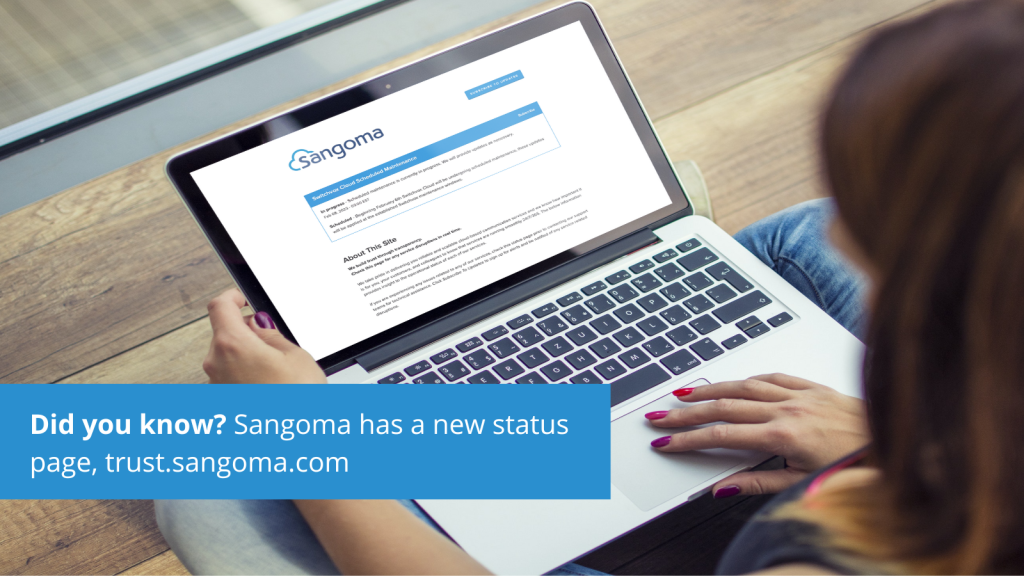
As part of Sangoma’s ongoing efforts to improve the reliability and performance of their services, they are introducing a new status page, trust.sangoma.com, to provide customers with an enhanced service experience.
As of February 1, 2023, trust.sangoma.com has replaced the legacy status page: status.sangoma.com, which will no longer be in service.
The new status page will better serve the customer’s needs by providing real-time updates and information on the status of all Sangoma products and services, including outages, maintenance, and more. This new platform will provide a more seamless and user-friendly experience for customers, allowing them to stay informed about the status of our services at all times.
Bookmark trust.sangoma.com and make it your go-to resource for all your Sangoma product and service status needs.
If you would like to share your experience visiting and utilizing trust.sangoma.com, or have any questions, please leave a comment below. If you have additional questions, please reach out to us at 800-398-8647!
You know Grandstream IP phones, video conferencing devices, Wi-Fi and Wi-Fi 6 APs, on-premises IP PBXs and cloud-based services, business security devices, and facility management solutions.
But do you recall their most famous line of switches of all?
Chances are that you wouldn’t be able to recall at all!
In fact, I don’t even need Johnny Mathis to tell me that the chances are, your chances are awfully good……..awfully good, that is, that you wouldn’t recall!
And the reason would be that Grandstream did not offer a line of switches.
And chances are that you may be as surprised by this news as Alex Finch (played by 80s era Robert Downey Jr. in the 1989 romantic comedy classic “Chances Are”) was when he gets his memory back and finds out that he died, has been reincarnated, and has unknowingly fallen for his own daughter from his previous life, and once he realizes this, he must end their relationship before his memory is erased by angels! (I know…I know. But it was the 80s!)
(Hey, you might be surprised right now if you realize that you actually know this movie!)
Or you might be as surprised as I was when one of my co-workers told me that they have a parakeet as a pet!
Let’s put our shock and surprise aside for now and let’s go take an in-depth look into the Grandstream GWN7800 series of switches.
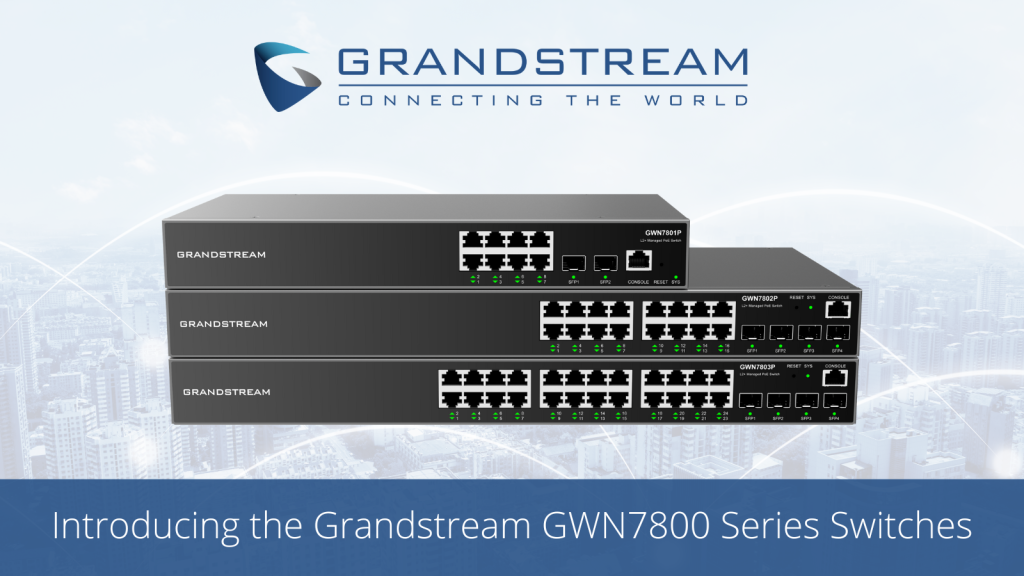
The Grandstream GWN7800 series are Layer 2+ managed network switches that allow small-to-medium enterprises to build scalable, secure, high-performance, and smart business networks that are fully manageable. It supports advanced VLAN for flexible and sophisticated traffic segmentation, advanced QoS for prioritization of network traffic, IGMP Snooping for network performance optimization, and comprehensive security capabilities against potential attacks.
The Grandstream GWN7800 series includes three models, the GWN7801, GWN7802, and GWN7803.
This triumvirate of GWN7800 models are available in both PoE and non-PoE versions.
With each model offering a PoE and non-PoE version, the GWN7800 series provides six total switches, with 8, 16, or 24 Gigabit Ethernet RJ-45 ports, and two or four Gigabit Ethernet SFP ports. Only the GWN7802 and GWN7803 models are rack-mountable.
The PoE models provide smart dynamic PoE output to power IP phones, IP cameras, Wi-Fi access points, and other PoE endpoints.
The Grandstream GWN7801 model features eight standard UTP Gigabit Ethernet RJ-45 ports and two Gigabit SFP ports for fiber optic connections.
The Grandstream GWN7800 series can be managed through the local network controller embedded in the GWN7800 series switch, Grandstream’s free on-premise network management software (GWN Manager), and Grandstream’s cloud network management platform (GWN.Cloud).
Grandstream GWN7800 series of switches come with a wide range of features such as powerful processing capabilities, multiple security prevention mechanisms, diverse reliability protection, and easy management and maintenance, allowing these switches to be the backbone for any Wi-Fi access point or IP endpoint deployment, making the GWN7800 series the ideal managed network switches for small-to-medium enterprises, schools, and hotels.
Small to medium enterprise offices can leverage this series of switches to create a network foundation for both their Wi-Fi and IP endpoint solutions
Entire school-wide Wi-Fi deployments can be anchored by the Grandstream GWN7800 series, along with IP endpoints such as phones and IP intercoms where needed throughout the facility.
Hotels typically require large amounts of both access points and IP phones to cater to the needs of customers, which the series can support.
The means of communication and providing information have evolved through the years, from just being able to walk or travel as far as was possible at the time, to sending flag signals via semaphore, to Morse Code and the telegraph, to telephones, to today’s modern high-tech networking.
Grandstream is known for its tradition of innovation, providing unified communications and networking solutions that allow businesses to be productive, and has been recognized for its quality and reliability.
These GWN7800 series continue that tradition as they deliver what your network needs, providing the performance, security, and manageability to suit all network requirements, making them the ideal choice for network deployments.
No matter the model of switch you choose, or the industry you are in, once you have set up your Grandstream GWN7800 switches, you’ll surely be saying, if not singing, to your switch or switches: “Guess you feel you’ll always be the one and only one for me.”
Have you set up and deployed any of the Grandstream GWN7800 series of switches as part of your networking solution? Chances are that you’d like to leave a comment below. If you’re looking for more information or have more questions, give our VoIP experts a call at 1-800-398-8647 or reach out to us at voipexperts@voipsupply.com.
Poly (Polycom) designed their Poly Acoustic Fence technology to suppress background noise and minimize the impact of nearby noises during a call.
Poly Acoustic Fence technology creates a virtual audio fence that blocks sounds from outside the fence. It suppresses background noise during calls to enhance audio quality for call participants.
Poly Acoustic Fence technology keeps business conversations free from extraneous noises and distractions by dramatically improving voice clarity. Poly makes this possible by automatically reducing background noise using advanced echo cancellation techniques to “cancel out” all soundwaves except the actual speaker’s voice.
This greatly blocks or reduces the impact of any sounds, such as co-workers’ chatter, loud machinery, or even barking dogs, originating from specific locations (e.g. outside the meeting room or from the next cubicle), so that ultimately all that is heard is the speaker.
Poly Acoustic Fence uses multiple microphones to create a virtual “audio fence” so that sounds from “outside of the fence” are blocked from being heard by remote participants. Once enabled, sounds outside of the fence are either blocked entirely or reduced. The end result allows remote callers to hear and focus on the meeting at hand.
Visit VoIP Supply’s Poly page or simply give our VoIP experts a call today at 1-800-398-8647 to find out the best options for you!
Have you used Poly Acoustic Fence technology and have thoughts or comments you’d like to share? Please leave a comment below.
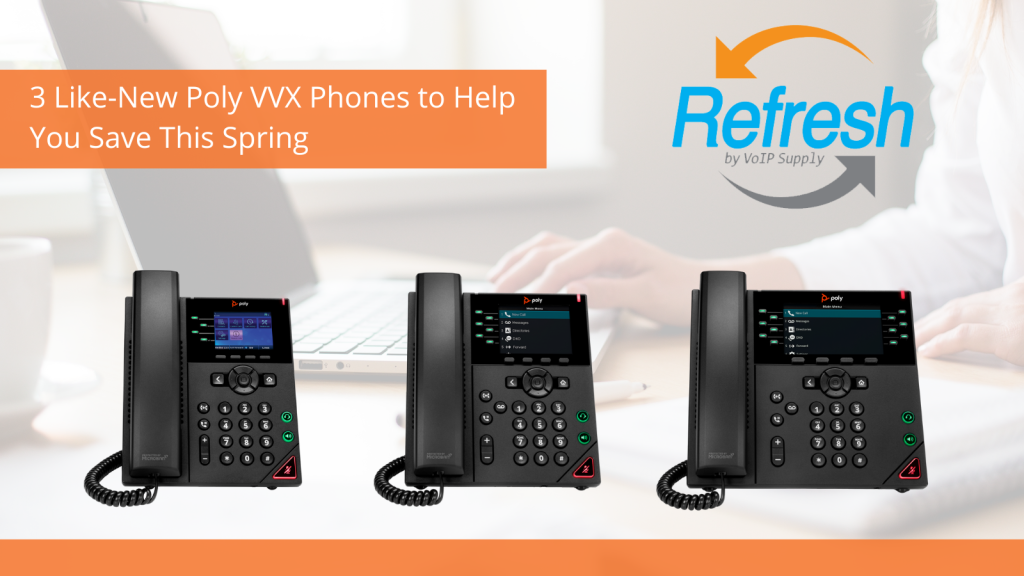
Are you looking for great deals on like-new phones this spring? Check out VoIP Supply’s Refresh line of like-new phones. All Refresh Products have undergone an extensive 10-step process in which they were inspected, tested, fully cleaned, upgraded to the latest firmware, and repacked for sale.
Here are three of VoIP Supply’s most popular like-new Poly phones that will help you welcome the coming of spring!
The Poly VVX 250 business IP desk phone is a high-quality 4-line IP phone that delivers reliable performance and enterprise-grade sound quality. It is ideal for knowledge workers, and cubicle workers who need the high-quality features that today’s modern business environment demands.
The Poly VVX 350 is a 6-line mid-level IP phone ideal for small to medium-sized businesses (SMBs). This high-quality phone has a color display and features Polycom’s HD Voice and Polycom’s Acoustic Fence Technology that work together to drastically improve voice clarity.
The Poly VVX 450 is a 12-line high-end IP phone with advanced enterprise features that any business can benefit from. It has a 4.3” color display and features Polycom’s HD Voice and Polycom’s Acoustic Fence Technology that work together to drastically improve voice clarity.
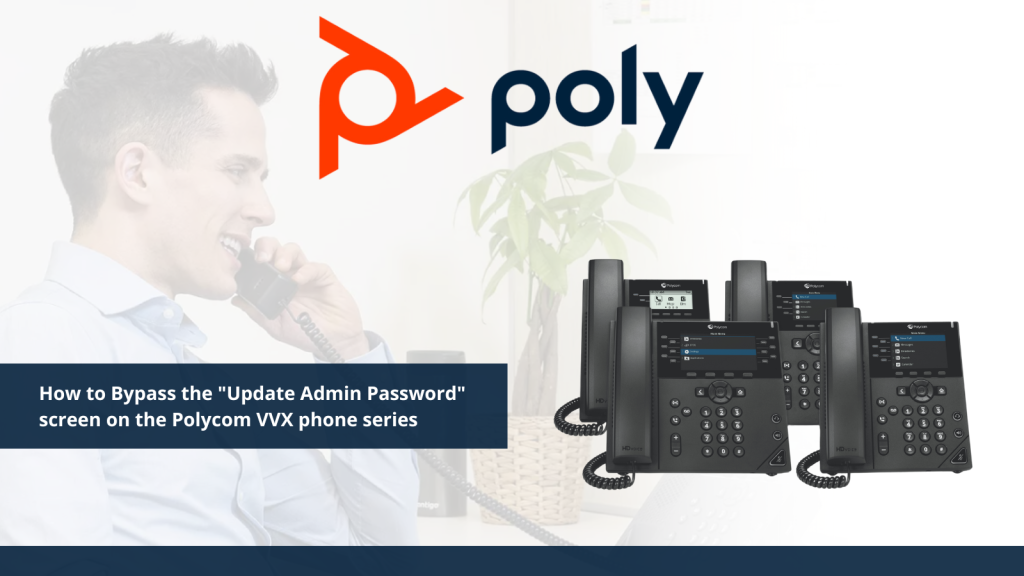
Recently our Customer Experience Manager and her team have been receiving calls and inquiries from our customers regarding an issue they were having with their Poly VVX phones. They were finding themselves unable to bypass the “Update Admin Password” screen that comes up in the main menu on the phone.
Worried about a possible problem with their phones, and looking to avoid the time-consuming process of having to do an RMA and wait for a replacement, our customers reached out to VoIP Supply to see if we can fix this problem.
VoIP Supply is composed of many departments that work closely with one another. Each is staffed with VoIP Experts, Customer Relations Specialists, and Industry Insiders who possess years of experience and knowledge of VoIP, VoIP-related hardware and software, and finding resolutions to problems that are in the best interest of our customers.
Our Customer Experience Manager brought this issue to the attention of our VoIP Team, who then set out to investigate the issue and see if there was something more going on beyond the customers just having a defective phone, and provide an alternate solution.
In researching the issue that these users were having with the phones, and the phones themselves, our VoIP Team was able to determine the problem had to do with firmware on the Poly VVX phone series. The latest firmware update to Poly (Polycom) phones has an added security feature that will not allow the user to reset the admin password and then press “enter”.
As a security feature on the latest Poly (Polycom) firmware versions (5.9.7 and above), the default admin password of “456” must be changed before you have access to the phone menu or web interface.
Our VoIP Team has put together a series of steps that the user can follow in order to bypass the “Update Admin Password” screen and change the default admin password.
These Steps Include:
Set Admin Password screen will appear
Enter the current password “456” in the “Old Password” field
Use the directional pad to arrow down to the “New Password” field
Choose a password you would like to use and enter this password
Use the directional pad again to arrow down to the “Confirm New” field
Once confirmed, press the “Enter’’ softkey on the bottom right
Now that your default admin password has been changed, you can access the phone features menu and web interface, and configure the device.
Do you have thoughts on this issue and this solution, or have similar experiences you’d like to share? Please leave a comment below.
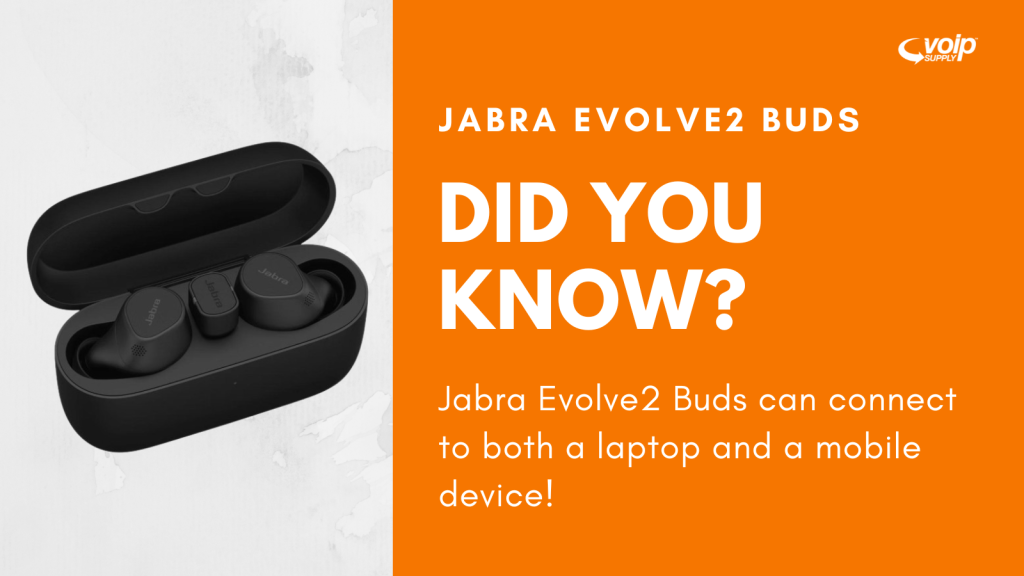
Jabra Evolve2 Buds are the latest professional-grade true wireless addition to the popular Jabra Evolve2 lineup, perfect for the hybrid worker who’s often on the go.
Did you know that you can connect Jabra Evolve2 Buds to both a Laptop and a Mobile Device?
To connect your Jabra Evolve2 Buds to your laptop, use the provided integrated USB adapter for the Evolve2 Buds. The USB adapter is a plug-and-play device that plugs into a USB port on a laptop. It’s pre-paired with the Evolve2 Buds out of the box. There’s no setup needed and it’s super easy to use. Additionally, this powerful USB adapter boosts users’ connection and makes it more stable, with fewer dropouts, and up to 20 meters / 65 feet wireless range.
Note: The USB adapter is included with the Jabra Evolve2 Buds. The adapter is located inside the carrying case.
To pair your Jabra Evolve2 Buds with your handheld mobile device, follow these steps:
Turn on the Bluetooth setting on your mobile device.
Turn on your earbuds by removing them from the charging case. Alternatively, simultaneously press and hold the Left and Right buttons. The LEDs on both earbuds will turn green.
To enter pairing mode, simultaneously press and hold (3 seconds) the Left and Right buttons on the earbuds, until the LEDs on the earbuds flash blue. The earbuds are now ready to pair with your mobile device.
To pair, go to the Bluetooth menu on your mobile device and select the Jabra Evolve2 Buds from the list. Enter “0000” (four zeros) if you are asked for a pin code.
Note: If you want to use just one earbud, you must still pair both earbuds with your mobile device. After the pairing, you can place one of the earbuds in the charging case. In daily use, when you turn on the earbuds, they will automatically reconnect with the last previously paired device, if it is turned on and within range.
If pairing is not successful, try the pairing steps again or try pairing with a different Bluetooth device. Try using the Bluetooth Pairing Guide which provides detailed steps for pairing with your mobile device.
If the pairing steps are not successful, try the following troubleshooting steps. Try re-pairing after you complete each troubleshooting step.
Restart your mobile device by turning it off and on.
Restart your Jabra device by turning it off and on.
Ensure your Jabra device is in pairing mode. See the following section, Related Frequently Asked Questions, for guidance on how to pair your Jabra device.
On your mobile device, turn Bluetooth off and on.
Try to pair your Jabra device using a different mobile device. This is to confirm that a different mobile device will find and pair with your Jabra device.
Ensure your Jabra device is updated with the latest firmware version.
If you still cannot pair your Jabra device with your mobile device, contact support.
Additionally, Jabra Evolve2 Buds utilize Advanced Bluetooth Multipoint, which makes it easy to switch between your laptop and smartphone. Advanced Bluetooth Multipoint connection allows you to connect your earbuds to two devices at the same time, like a smartphone and a laptop, making switching between devices seamless. Advanced Bluetooth Multipoint connection ensures you’re always aware of incoming calls and notifications.
If you would like to share your experience using the Jabra Evolve2 Buds or have any questions, please leave a comment below. If you have additional questions, please reach out to us at 800-398-8647!
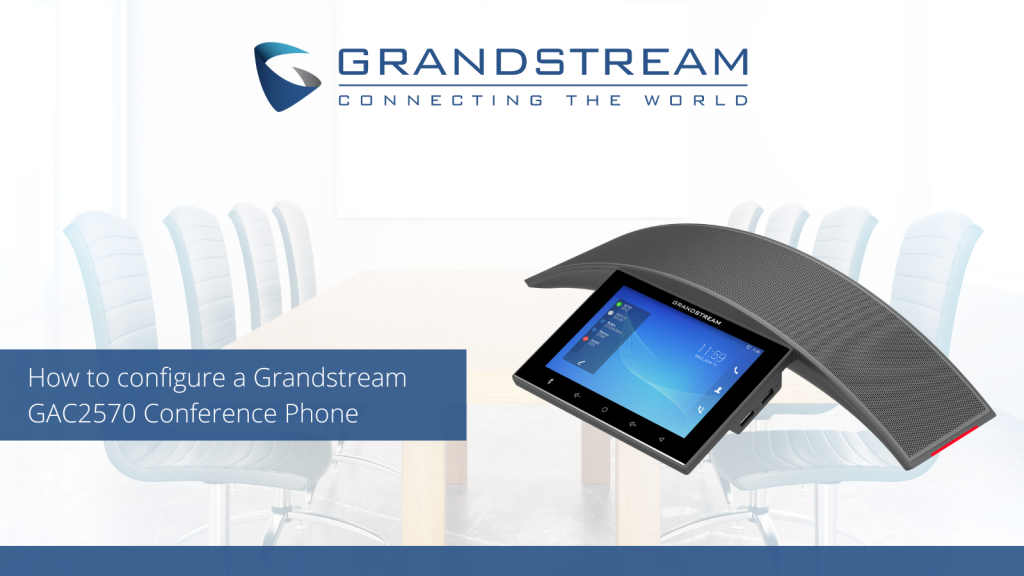
The Grandstream GAC2570 Conference Phone is a full-duplex conferencing device featuring high-quality voice communication for meeting rooms, huddle areas, boardrooms, and other conferencing spaces. This conference phone features an exceptional speaker with MMAD (Multichannel Microphone Array Design) and a 7” 1280×800 IPS touchscreen LCD with conferencing support for up to 12 attendees.
You can configure the Grandstream GAC2570 Conference Phone in two ways: Web Browser or Touch Screen. Here are the simple steps:
Via Web Browser*
From the main menu, slide to the “Settings” screen.
Access “Settings” app ►Status ► Network status ► IPv4 address”.
Type in the IP address in your PC browser.
Enter username and password to log in. (The default administrator username is “admin” and the default random password can be found at the sticker on the GAC2570).
*Note: The computer must be on the same LAN as the GAC2570.
Via Touch Screen
On the main menu, click “Click to add accounts” to configure SIP account.
Access “Settings App” for advanced configuration.
Please note, per Grandstream: The GAC2570 is not pre-configured to support or carry emergency calls to any type of hospital, law enforcement agency, medical care unit (“Emergency Service(s)”) or any other kind of Emergency Service. You must make additional arrangements to access Emergency Services. It is Your responsibility to purchase SIP-compliant Internet telephone service, properly configure the GAC2570 to use that service, and periodically test Your configuration to confirm that it works as You expect. If You don’t do so, it is Your responsibility to purchase traditional wireless or landline telephone services to access Emergency Services.
There you go! You are ready to configure your conference phone. Share your experience with us with a comment below!